Tired of finding controllers? Automate your IR devices!
Control and automate IR-only devices from Home Assistant with a Zigbee IR blaster: learn the remote codes in Zigbee2MQTT, then script and automate them.
Environment#
- OS: Debian GNU/Linux 12 (bookworm)
- Kernel: Linux 6.12.33+deb12-amd64
- Architecture: x86-64
- HA: Home Assistant Container
- Core: 2025.7.4
- Frontend: 20250702.3
Prerequisite#
- Setup Home Assistant
- Set up Zigbee dongle with HA
- Adding a Zigbee device to Zigbee2MQTT and Home Assistant
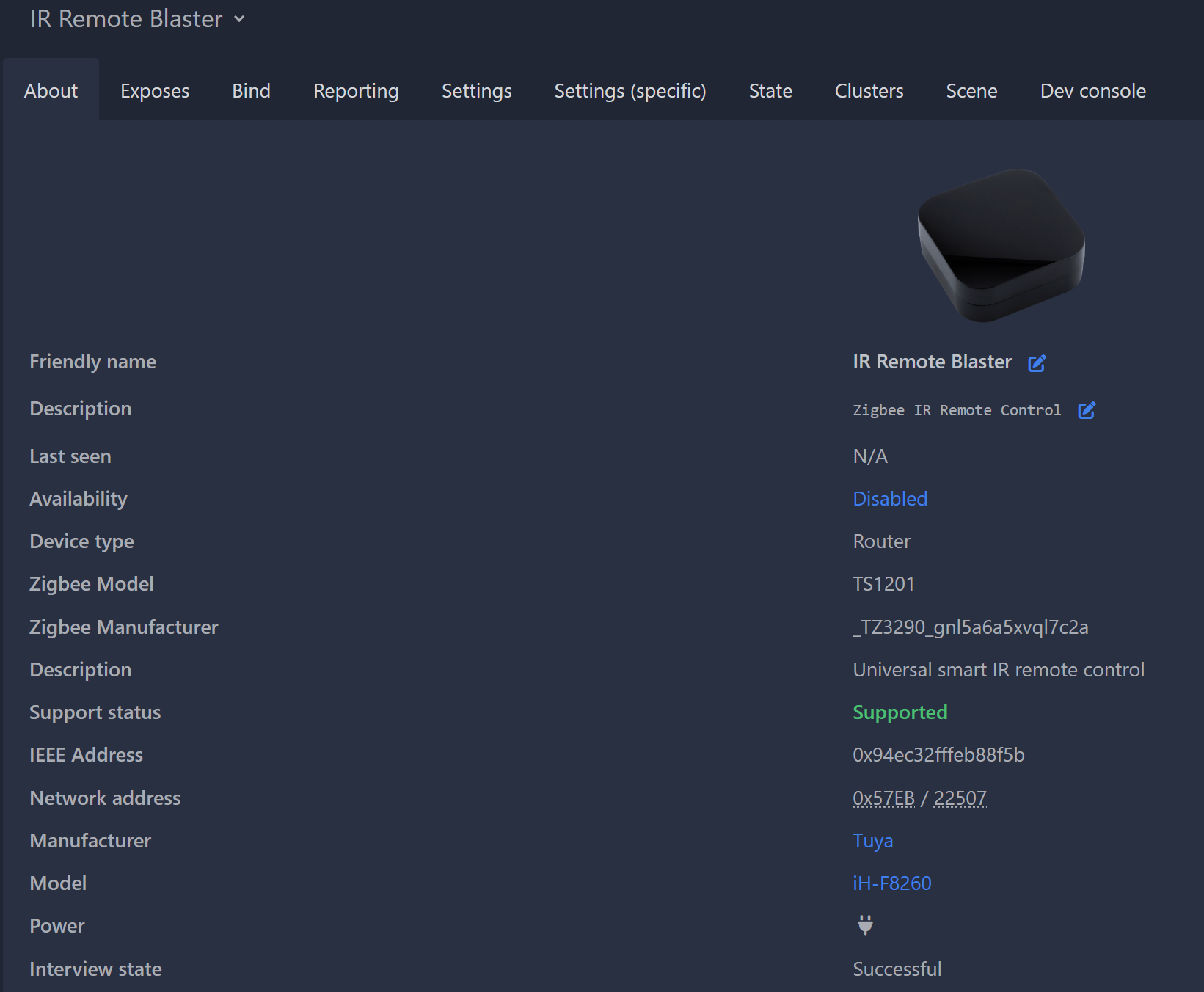
- A Zigbee IR Remote Blaster. I use a Tuya one (Zigbee model
TS1201), which is supported by Z2M ↗. Check the Z2M database ↗ before buying.
The Problem#
Plenty of cheap devices at home only come with an IR remote — the LED strip behind my TV, for example. The remote is always somewhere else when I need it, and there’s no way to automate the device because nothing else can talk to it.
The Solution#
A Zigbee IR blaster sits in the room, learns the codes from the original remote, and replays them on demand. Here I use Zigbee2MQTT as bridge, and Mosquitto as broker. Automation will be done through Home Assistant.
Once each button is a script in HA, the device can be triggered by anything HA knows about: time, sunset, another device’s state, or a switch on the dashboard.
How to Do It#
1. Learn the IR code from controller#
First, connect the device to the Zigbee network.
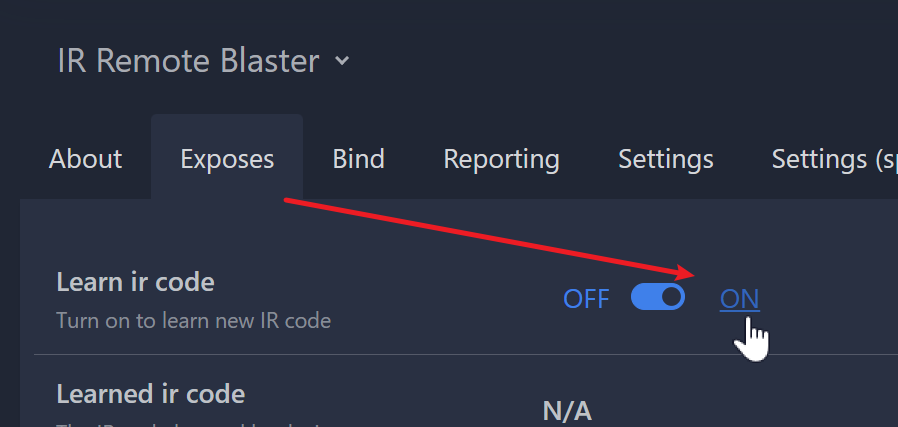
Go to “Exposes” tab, turn on “learn ir code” mode.
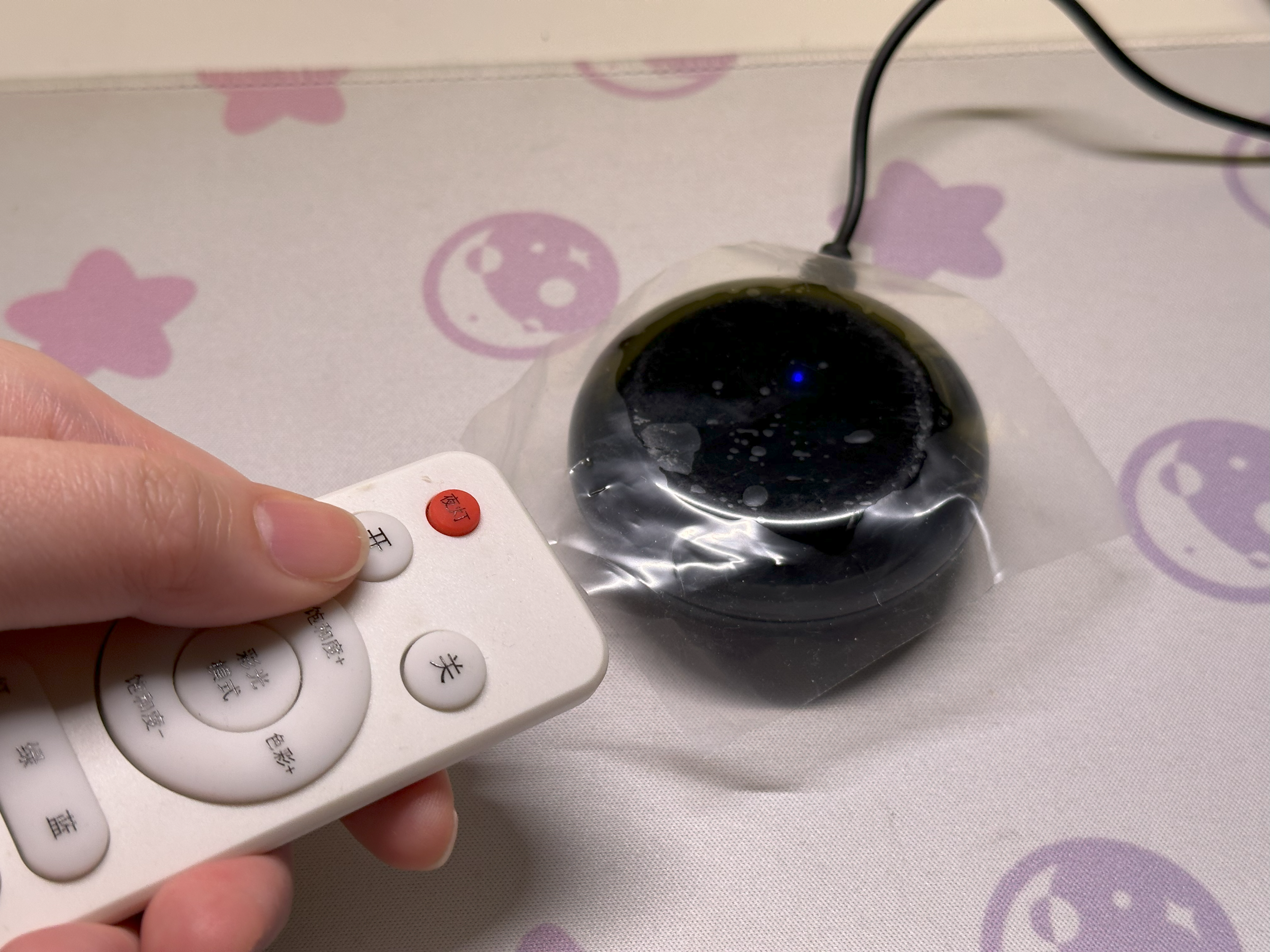
When the indicator turns on (or flashes), press the button on your controller to send the IR code to the blaster.
Once the button is pressed, the Z2M will display the corresponding IR code.
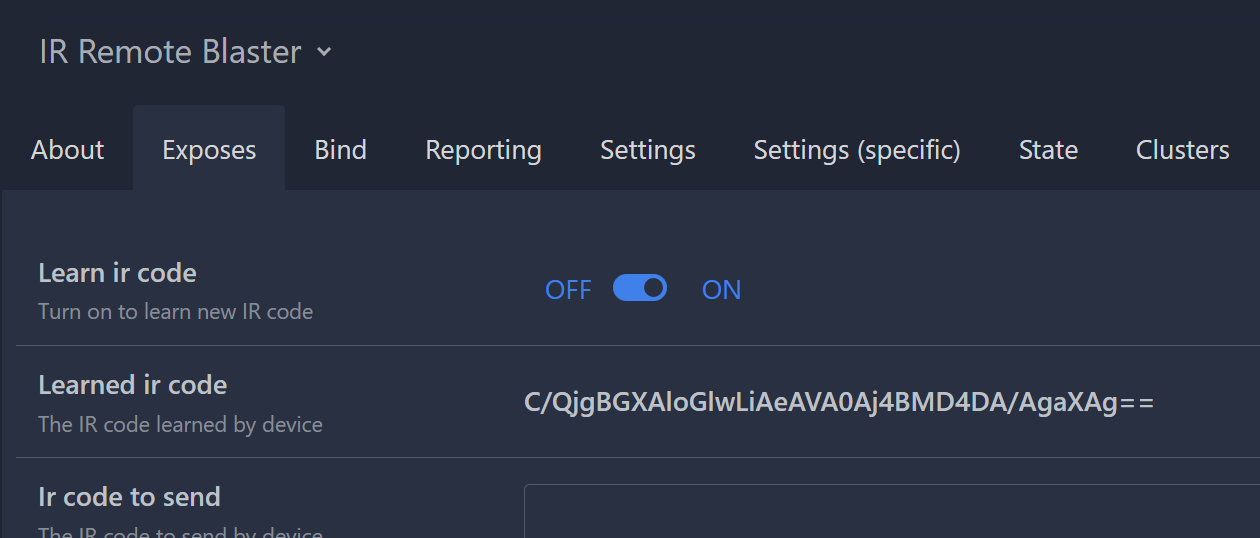
Note down the codes for each of the buttons that you want to replicate from the blaster.
2. Setup Automation to Turn on/off the Backlight#
In HA, go to Settings -> Devices & Services -> Devices, search the IR Remote Blaster we just added in to the Z2M, which was also automatically added into HA.

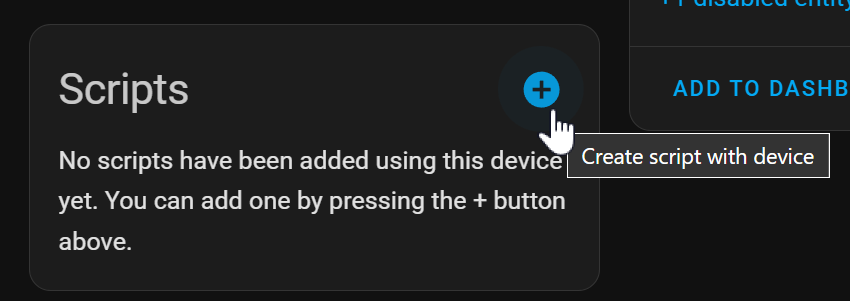
Click into the device details page, click the ”+” button in “Scripts” card to create a new script. In the pop up, select “Use device as action”
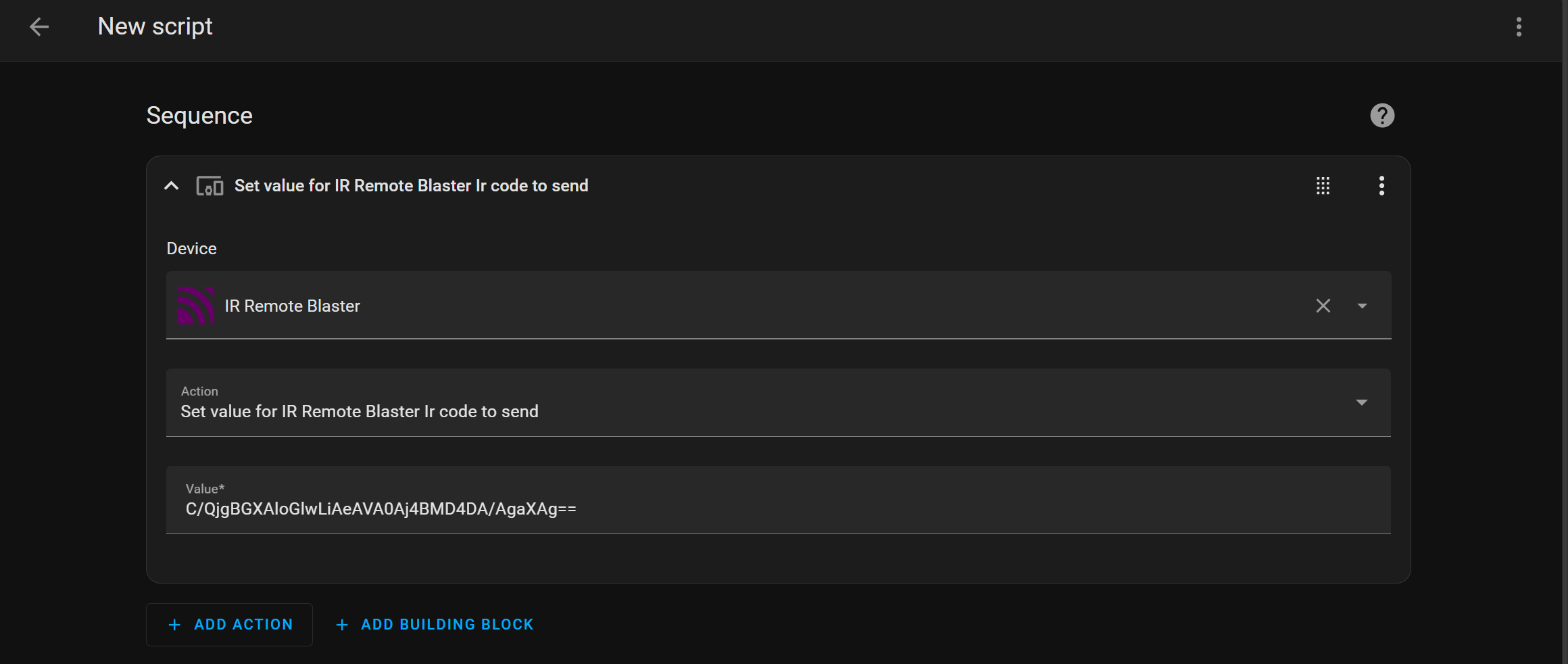
It will create a new script with a template action — setting an IR code value to send. In the “Value” input box, paste the IR code that we just learned.
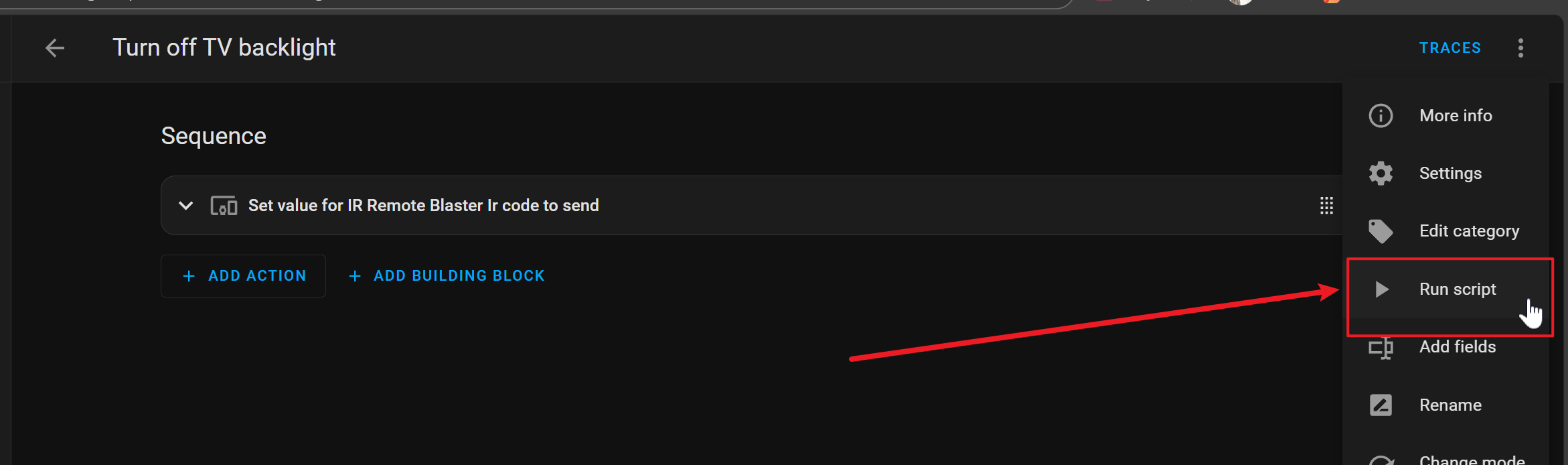
Save the script with a name and test the action from the top right menu.
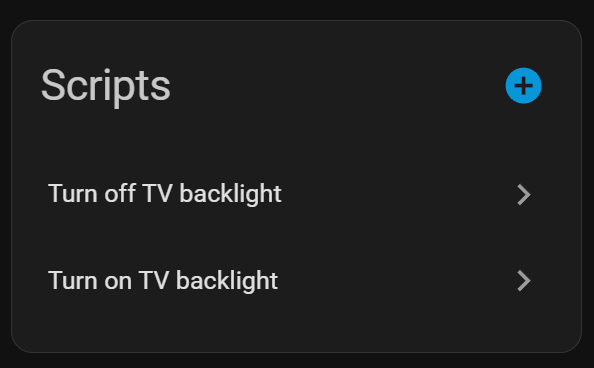
Add a script for each of the IR codes, each representing an action sent from the original controller. This will make it easier for future reuse.
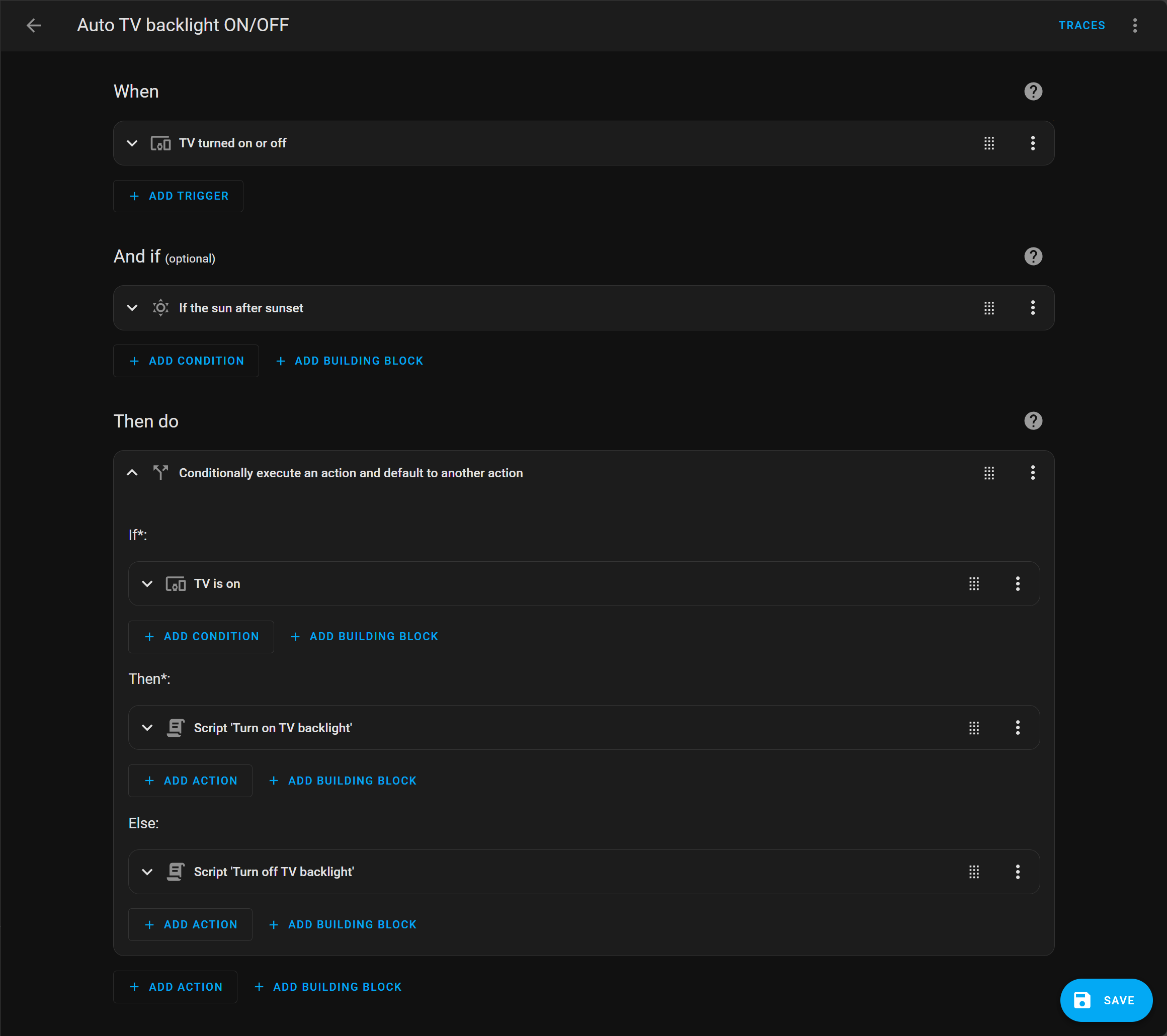
If you have your TV added to HA as well, you can set up automation based on the status of the TV. Mine triggers on the TV turning on or off, only after sunset, and runs the “Turn on TV backlight” script if the TV is on, otherwise “Turn off TV backlight”.
Optional: Create a toggle for the TV backlight#
If we would like to store the state of the backlight and use it in future, we can create a toggle helper for that. The blaster only sends codes; it has no idea whether the backlight is currently on or off, so the toggle becomes our source of truth.
In HA, go to Settings -> Devices & Services -> Helpers, click ”+ Create Helper” from bottom right. In the pop up, search for toggle.
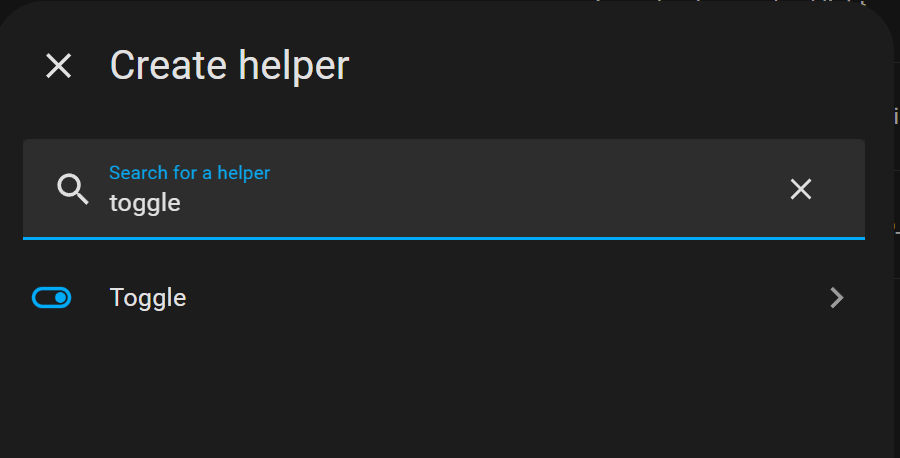
This will create a toggle, which acts like a switch.
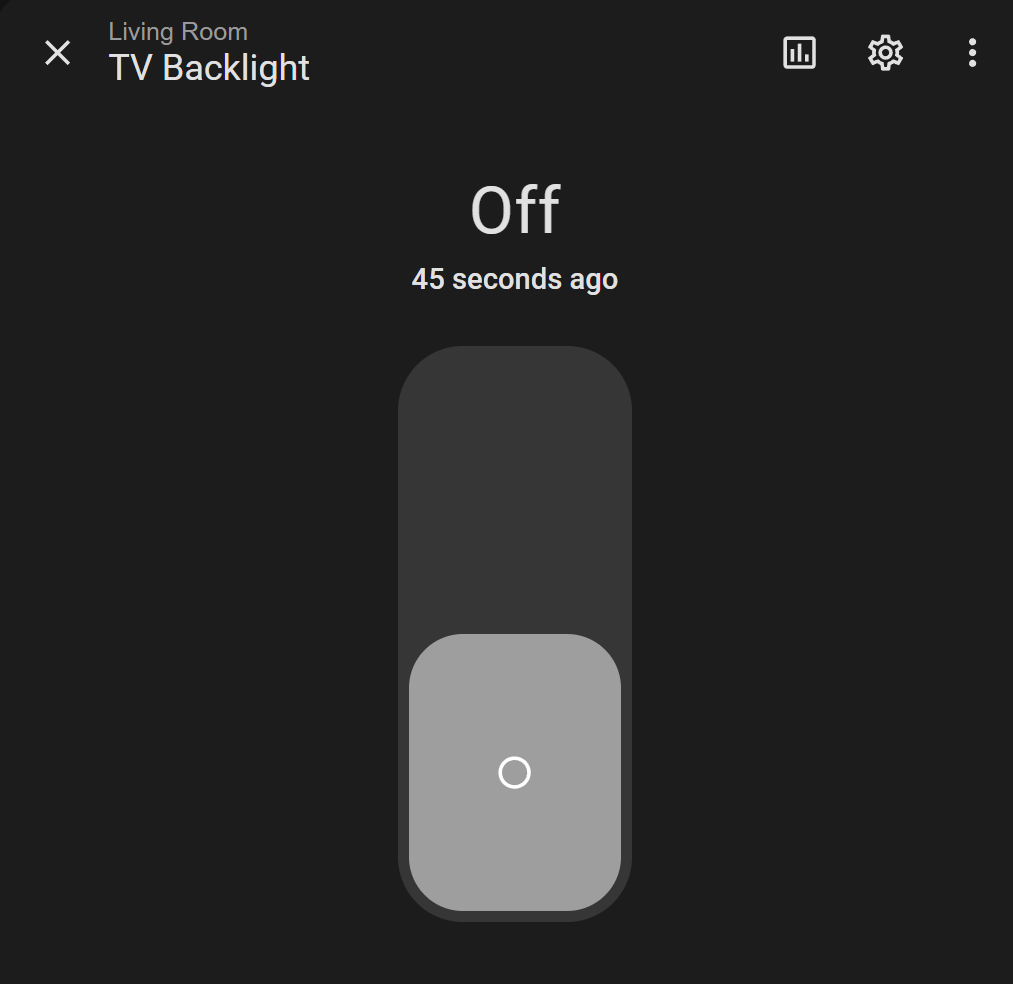
However, the switch won’t do anything on toggling, we need to create an automation to bind the state to the action to turn on/off the TV backlight.
Go to Settings -> Automations & scenes -> Automations, and click the ”+ Create Automation” from the bottom right corner to create a new automation.
Under “When” section, click “Add Trigger”. In the pop up, select “Entity” -> “State”, then pick the toggle helper as the entity. Leave “From” and “To” empty so it fires on any change.
Under “Then do”, add a “Conditionally execute an action and default to another action” building block (the If-then-else one):
- If: the toggle helper state is
on - Then: run script “Turn on TV backlight”
- Else: run script “Turn off TV backlight”
Save it. Now flipping the toggle on the dashboard sends the right IR code, and the toggle always reflects the last state we set.
Finally, update the earlier TV automation to turn the toggle on/off instead of calling the scripts directly. That way both paths go through the toggle and the state never goes out of sync.
Tips#
- Learn mode times out after a few seconds. If nothing shows up in Z2M, turn it on again and press the button straight away.
- Point the blaster at the device with a clear line of sight. IR doesn’t go through the TV cabinet door.
- Some remotes use a single “power” toggle code rather than separate on and off codes. If yours does, the toggle helper above is the only way to track state.
- Name scripts consistently (e.g.,
Turn on TV backlight,Turn off TV backlight) so they’re easy to find when building automations later.
Summary#
A Zigbee IR blaster turns any remote-only device into something Home Assistant can script, automate and toggle from the dashboard, so the original remote can stay lost.