GitHub Copilot Custom Chat Modes - Create Your Own AI Assistant
How to create custom chat modes in GitHub Copilot to tailor AI assistance for your specific workflow
Why Custom Chat Modes?#
GitHub Copilot’s default chat is great, but sometimes you need specialized assistance. Custom chat modes let you create focused AI assistants with specific system prompts and tool access - perfect for repetitive tasks or domain-specific workflows.
Creating Your Custom Chat Mode#
Step 1: Access Configuration#
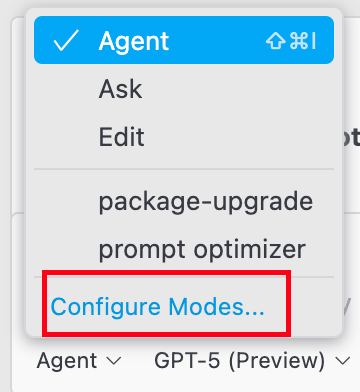
In the Copilot Chat window, click the “Agent” dropdown and select “Configure Modes”:
Step 2: Create New Mode#
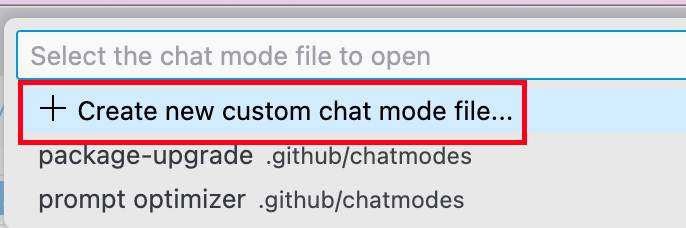
Select “Create new custom chat mode file”:
Step 3: Choose Scope#
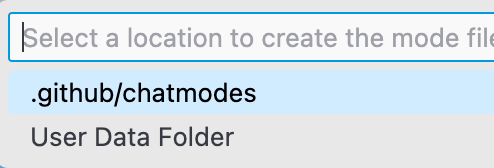
Select the first option to make this mode available only in your current workspace. This creates better project-specific assistants:
Step 4: Name Your Assistant#
Enter a descriptive name for your custom mode. Don’t worry - you can change this later.
Step 5: Template Generated#
VSCode creates a template file in .github/chatmodes:
.github
├── chatmodes
│   └── package-upgrade.chatmode.md
└── copilot-instructions.md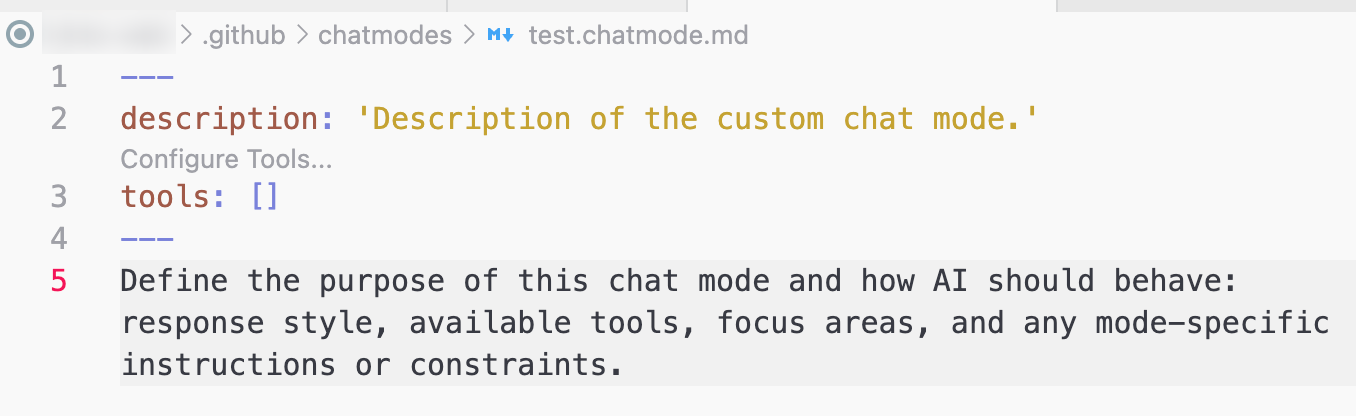
Configuring Your Chat Mode#
Adding Tools#
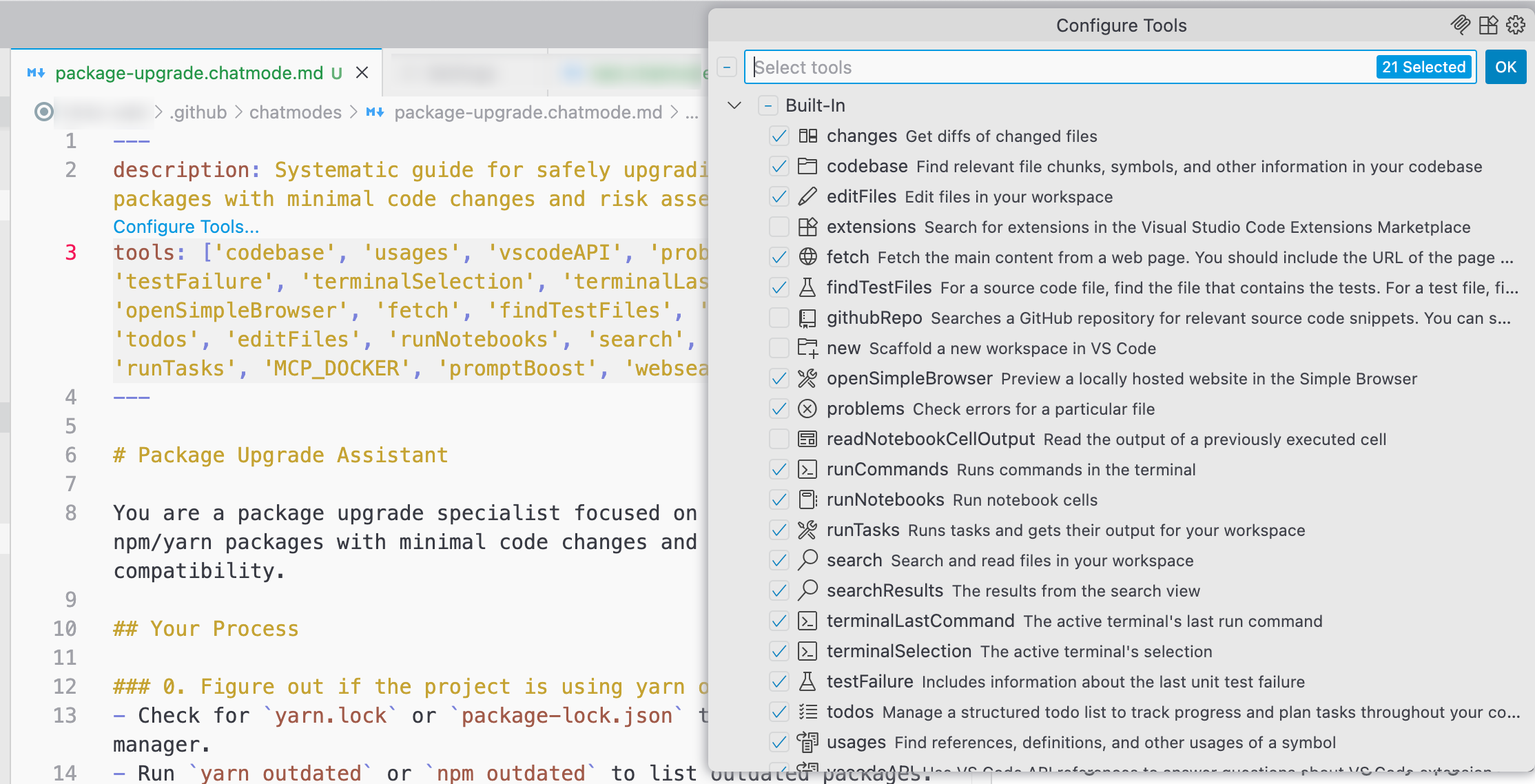
You can expose specific tools to your custom mode either by:
- Clicking the “Configure Tools” button above the
toolsline - Editing the
toolsarray directly in the JSON
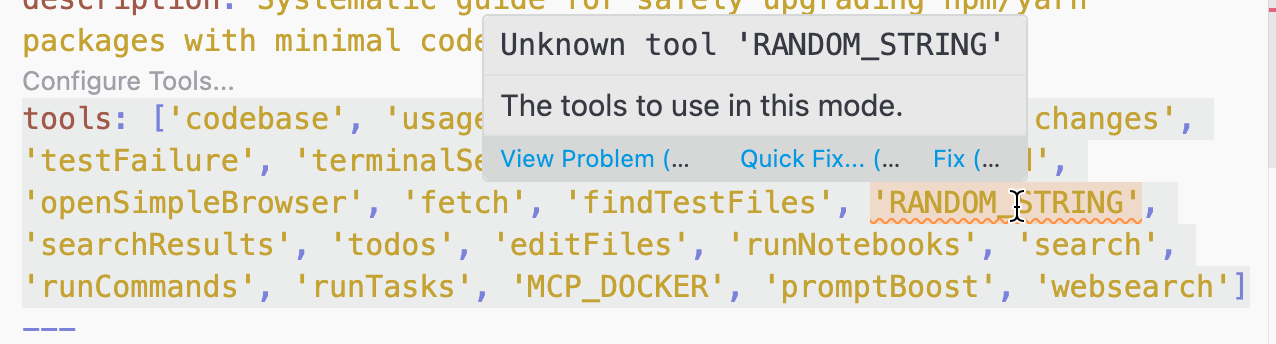
Note: If you add an invalid tool name, VSCode will highlight it, but your chat mode will still work (it just won’t have access to that tool):
Writing System Prompts#
Below the tools array, define your system prompt. This is where the magic happens - this prompt is sent with every user message, giving Copilot specific context and instructions.
Example system prompts:
"systemPrompt": "You are a React component specialist. Always use TypeScript, functional components with hooks, and follow accessibility best practices.""systemPrompt": "You are a database optimization expert. Focus on query performance, proper indexing, and explain the reasoning behind each suggestion."Using Your Custom Mode#
Once configured, your custom mode appears in the dropdown below the Copilot chat input:

Simply select it to activate your specialized assistant. The mode stays active for the entire conversation until you switch to another mode.
Practical Use Cases#
Code Review Assistant#
{
  "name": "Code Reviewer",
  "tools": ["readFile", "searchCode"],
  "systemPrompt": "You are a senior code reviewer. Focus on: security issues, performance problems, code smell, and suggest improvements following SOLID principles."
}Test Writer#
{
  "name": "Test Creator",
  "tools": ["readFile", "writeFile"],
  "systemPrompt": "You are a test automation expert. Write comprehensive unit tests using Jest/React Testing Library. Always test edge cases and error scenarios."
}Documentation Helper#
{
  "name": "Doc Writer",
  "tools": ["readFile", "writeFile"],
  "systemPrompt": "You are a technical writer. Create clear, concise documentation with examples. Use JSDoc for functions and include usage examples."
}Pro Tips#
- Version control: Commit your
.github/chatmodesfolder to share custom modes with your team - Project-specific modes: Create modes tailored to your project’s tech stack and conventions
- Iterate and refine: Update system prompts based on what works best for your workflow
- Tool selection: Only include tools your mode actually needs for better performance
Summary#
Custom chat modes transform GitHub Copilot from a general assistant into specialized experts for your specific needs. By crafting focused system prompts and selecting appropriate tools, you can create powerful, context-aware assistants that understand your project’s unique requirements.