Connect Jira and Confluence to Claude Code with Atlassian MCP and CLI
Set up Atlassian MCP and ACLI so Claude Code can manage Jira tasks and Confluence pages from the terminal.
The Problem#
Context-switching between Jira, Confluence, and the terminal is a drag. Every time we need to check a ticket, create a task, or look up a Confluence page, we’re leaving the editor, clicking through Atlassian’s UI, and losing focus.
Even with project scope docs living in Confluence, breaking those down into Jira tickets manually still takes time. And when working with Claude Code, we end up copy-pasting ticket descriptions and page content just to give it context.
The Solution#
Install both Atlassian MCP and Atlassian CLI (ACLI), then let Claude Code pick the right tool for the job.
- Atlassian MCP — deeper integration with both Jira and Confluence. Can set Jira properties (priority, labels, sprint), run JQL/CQL searches, create and update Confluence pages, and manage comments.
- Atlassian CLI (ACLI) — lighter weight. Faster for simple reads and writes, uses fewer tokens, and works across any AI agent without needing per-tool MCP setup. Covers both Jira and Confluence.
With both available, Claude Code chooses MCP when it needs full property access or rich Confluence editing, and ACLI when a quick lightweight call is enough.
How to Do It#
1. Atlassian MCP#
In the terminal, run this to add Atlassian MCP at the user level:
claude mcp add --transport http "atlassian" "https://mcp.atlassian.com/v1/mcp" -s userFollow the browser prompt to authenticate.
Back in Claude Code, run /mcp to verify the connection:
  Manage MCP servers
  11 servers

    User MCPs (/Users/ziqiding/.claude.json)
  > atlassian · connected
    context7 · connected
sequential-thinking · connectedThat’s it. Claude Code can now interact with both Jira and Confluence through MCP tools like createJiraIssue, searchJiraIssuesUsingJql, transitionJiraIssue, getConfluencePage, createConfluencePage, and searchConfluenceUsingCql.
2. Atlassian CLI (ACLI)#
Install#
macOS via Homebrew:
brew tap atlassian/homebrew-acli
brew install acliFor other platforms, see the full install documentation ↗.
Authenticate#
Two options — pick whichever suits your setup.
Option A: Web login (easiest)
acli jira auth login --webFollow the steps in the browser. You’ll see this on success:
Authentication successful
Welcome, Ziqi DingOption B: API key (for headless environments or CI)
Go to Atlassian Account Security settings ↗ and create an API token.
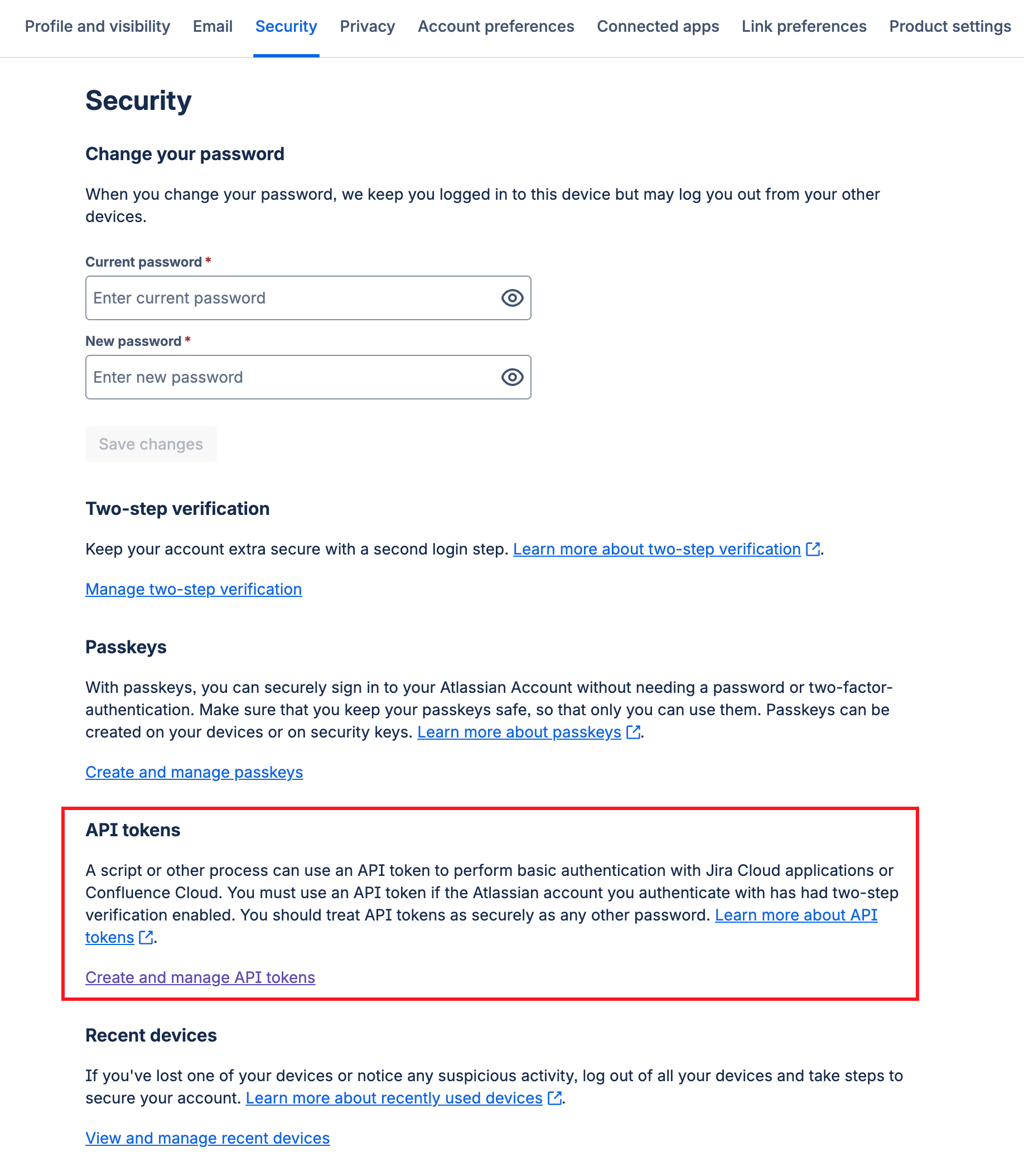
Then authenticate with:
# Replace <token>, site URL, and email with your own values
echo <token> | acli jira auth login --site "mysite.atlassian.net" --email "user@atlassian.com" --tokenKey Commands#
Here are the two commands you’ll use most. For the full list, check the ACLI getting started guide ↗.
Create a work item:
acli jira workitem create --summary "Add auth middleware" --project "HSP" --type "Task"Transition a work item:
acli jira workitem transition --key "HSP-42" --status "In Progress"Allow ACLI in Claude Code#
Claude Code needs permission to run acli commands. Usually when Claude needs to invoke that tool, it will ask for permission and add it to settings automatically.
If not, we can manually add it to your allowed tools — either in Claude Code settings or in project’s CLAUDE.md:
In .claude/settings.json:
{
  "permissions": {
    "allow": [
      ...
      "Bash(acli jira:*)",
      "mcp__atlassian__searchJiraIssuesUsingJql",
      "mcp__atlassian__editJiraIssue",
      ...
    ]
  }
}This lets the AI invoke ACLI directly without prompting for approval each time.
How Claude Code Chooses#
With both tools available, Claude Code picks the best one per task:
| Scenario | Tool | Why |
|---|---|---|
| Set priority, labels, or sprint | MCP | Full property access |
| Complex JQL/CQL search | MCP | Richer query support |
| Create issue with all metadata | MCP | More fields available |
| Create or update Confluence pages | MCP | Rich content editing, inline comments |
| Quick status check | ACLI | Fewer tokens, faster |
| Simple transition | ACLI | Lightweight call |
| Read a Confluence page | ACLI | Fast, low-token retrieval |
| Bulk operations | ACLI | Scriptable, piped commands |
You can also guide this in your CLAUDE.md:
Prefer ACLI for reads and simple transitions. Use Atlassian MCP for creating issues or setting Jira properties.Or let Claude add it to your global memory:
❯ can you remember this: Prefer ACLI for reads and simple transitions. Use Atlassian MCP for creating issues or setting Jira
properties.

⏺ I'll save that as a feedback memory right away.

⏺ Recalled 1 memory, wrote 2 memories (ctrl+o to expand)

⏺ Saved. I'll use ACLI for reads and simple transitions, and Atlassian MCP for creating issues or setting Jira properties going forward.
Practical Examples#
“What are my current sprint tasks?”
Claude Code uses MCP’s searchJiraIssuesUsingJql with a JQL query like sprint in openSprints() AND assignee = currentUser(), then formats the results as a list.
“Create a task for adding dark mode support in project HSP”
Claude Code calls acli jira workitem create --summary "Add dark mode support" --project "HSP" --type "Task" — quick, low-token call for a straightforward create.
“Move HSP-42 to Done and add a comment that the PR is merged”
Claude Code uses ACLI for the transition (workitem transition --key "HSP-42" --status "Done") and MCP’s addCommentToJiraIssue for the comment — best of both tools in one prompt.
“Summarize the architecture page from our Confluence space”
Claude Code uses MCP’s searchConfluenceUsingCql to find the page, then getConfluencePage to read its content and return a summary — no need to open a browser.
Summary#
With Atlassian MCP and ACLI both connected, Claude Code can manage Jira tasks and Confluence pages without us ever leaving the terminal.